
Quick Setup Guide
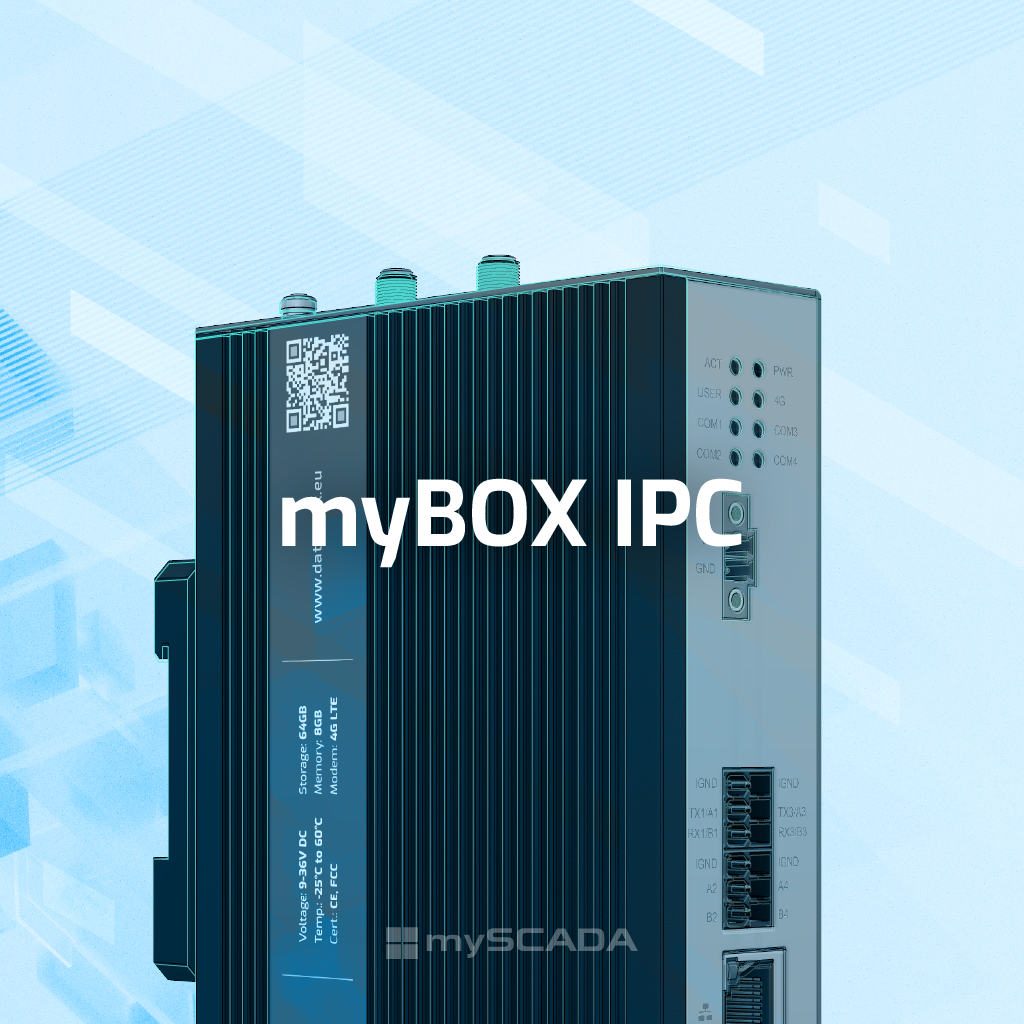
myBOX IPC
All-in-One Industrial Gateway
Package Content
- 1× myBOX IPC
- 1× Package with necessary accessories for installation
- 1× Quick guide
Powering Up
Before you install and wire any device, make sure to disconnect the electric power from the system.
Strip the ends of the cable so it could be slipped into the supplied green connector. Do not forget to check the correct polarity! Tighten the terminal screw using a small flat-blade screwdriver.
Plug electricity cable into myBOX IPC which must be in the range 9–36 V DC.

Warranty & Lifetime
Manufacturer's Warranty
Starting from the date of purchase.
Software & Security Updates
Guaranteed system reliability and compliance with security standards.
First Boot
mySCADA Manager is available on port 34022 on all network interfaces
HMI Runtime runs on port 80 (HTTP) and 443 (HTTPS)
Ethernet Port 1 — LAN
192.168.1.1
DHCP server active — plug in a laptop to get IP automatically in the same range. Manager: 192.168.1.1:34022
Ethernet Port 2 — WAN
DHCP
Receives IP automatically from your network DHCP server. Manager accessible on assigned IP at port 34022.
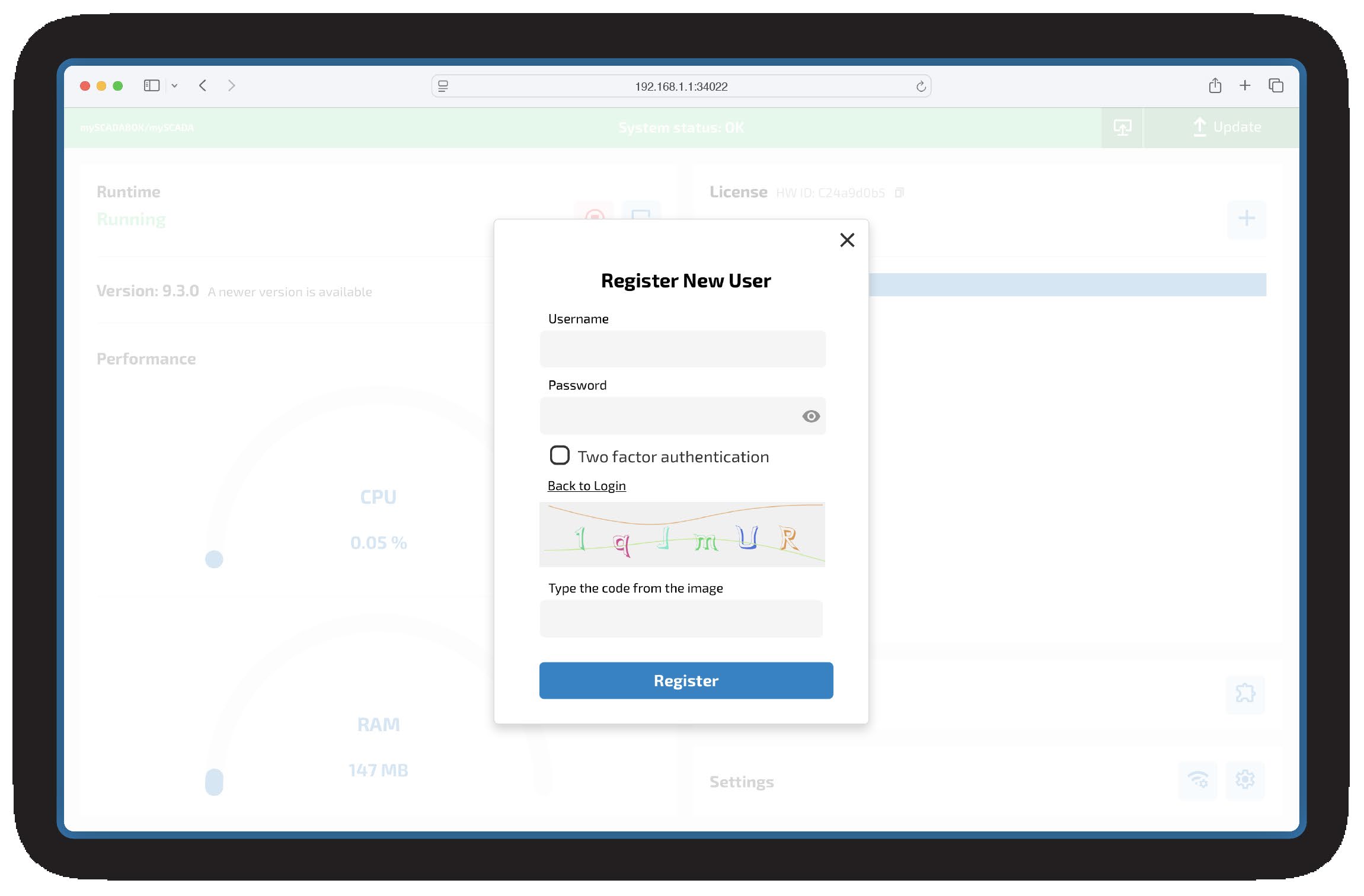
First Connection — Create Administrator Account
On first connection, you will be asked to create an administrator account. Fill in a username and password. For tighter security, we recommend enabling two-factor authentication.
Hardware Features

Front — Ports & Power

Bottom — Mounting & Storage
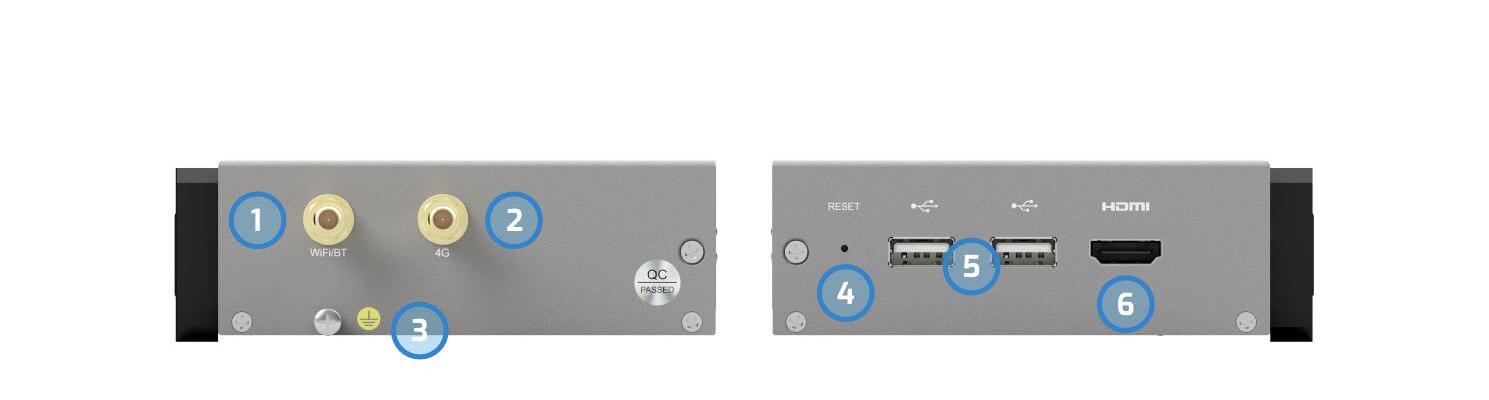
Sides — Wireless, Controls & USB
Support
Thank you for purchasing myBOX IPC.
Download Original PDF